How-To Guide

Spendora setup guide (app flow)

This guide mirrors the real in-app flow so what you read here matches what you see inside Spendora.

Step 01

Create your account and complete onboarding

Follow the live onboarding sequence in the app: onboarding slides, personal information, and verification.

  • Install Spendora from Google Play or open app.spendoraapp.com in your browser.
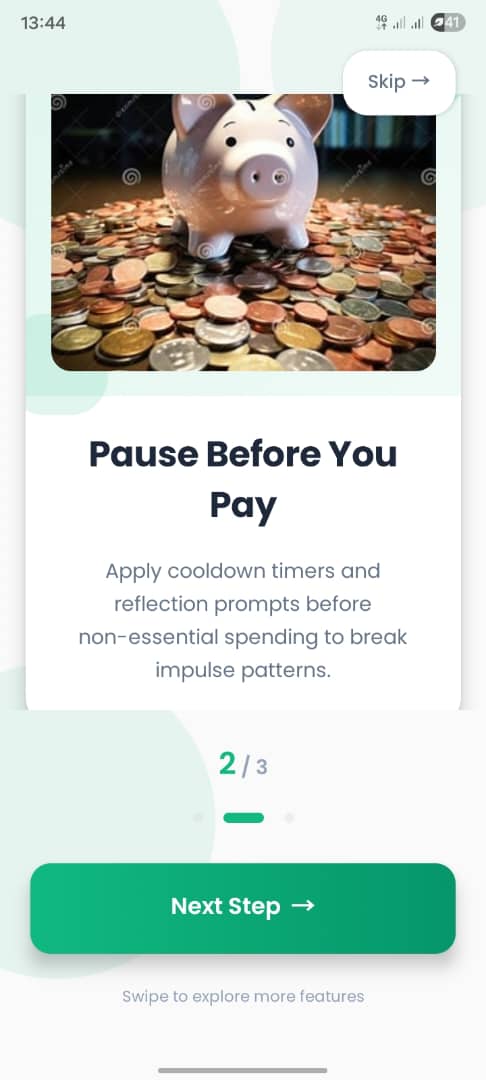
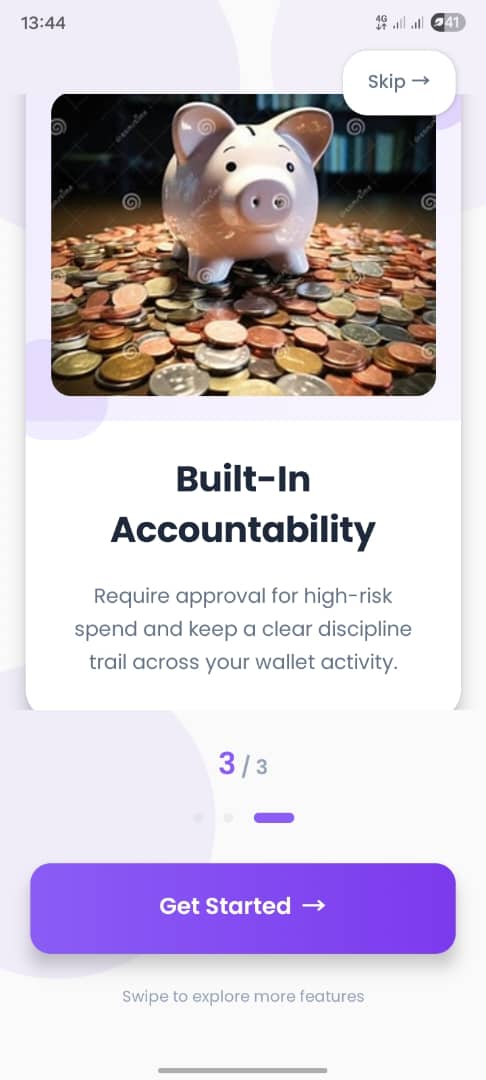
  • Swipe through onboarding screens and continue to account creation.
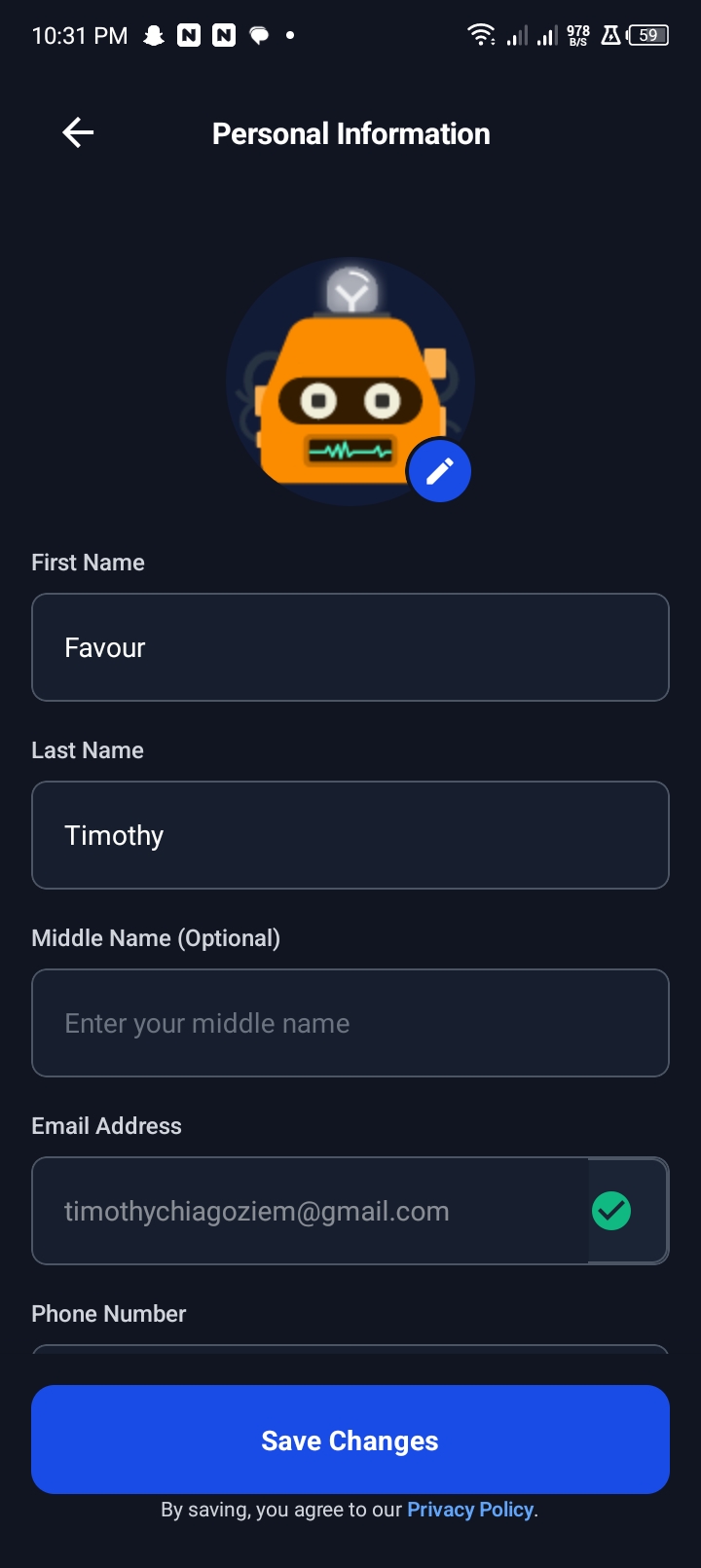
  • Fill Personal Information correctly (name, email, and required profile details).
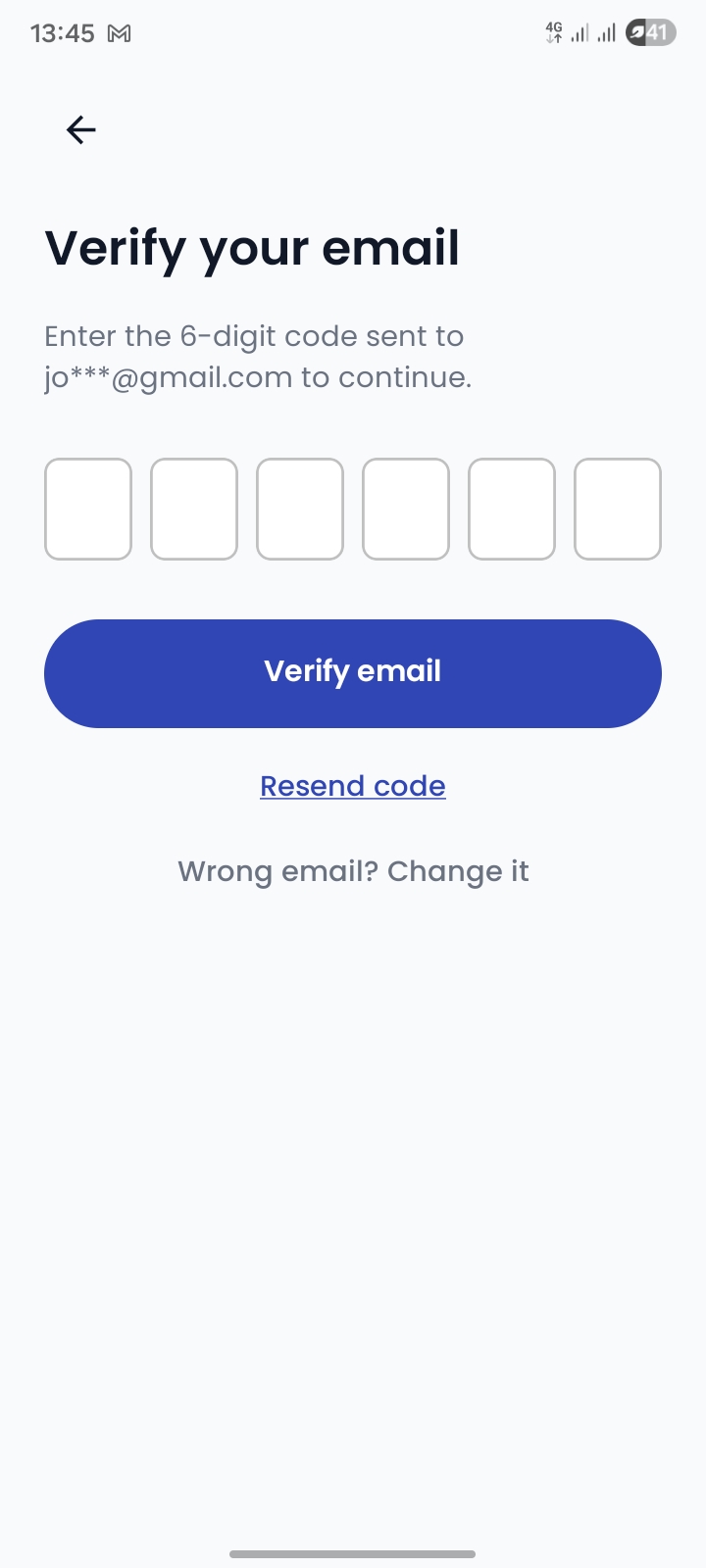
  • Complete email verification before proceeding to the dashboard.
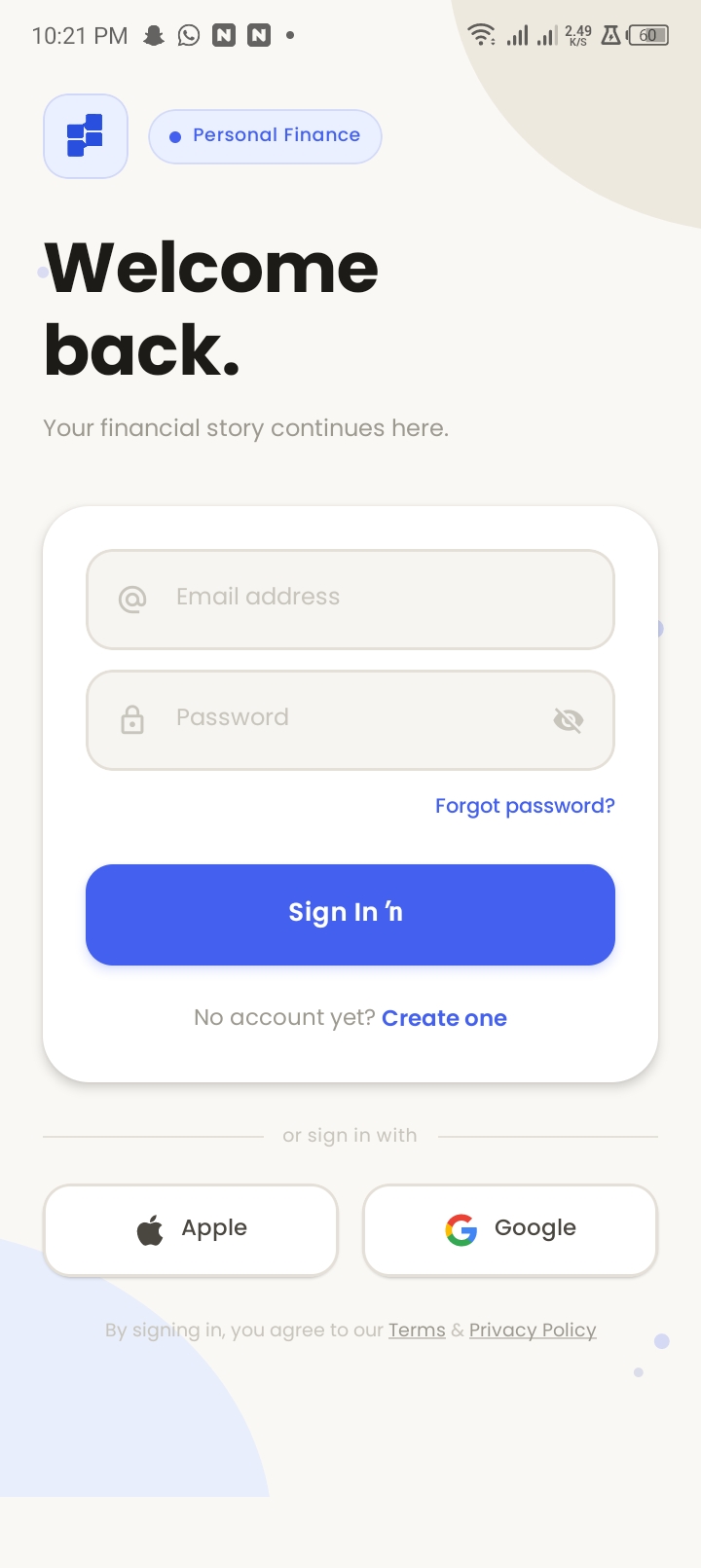
  • Use the login screen to sign in after verification if prompted.
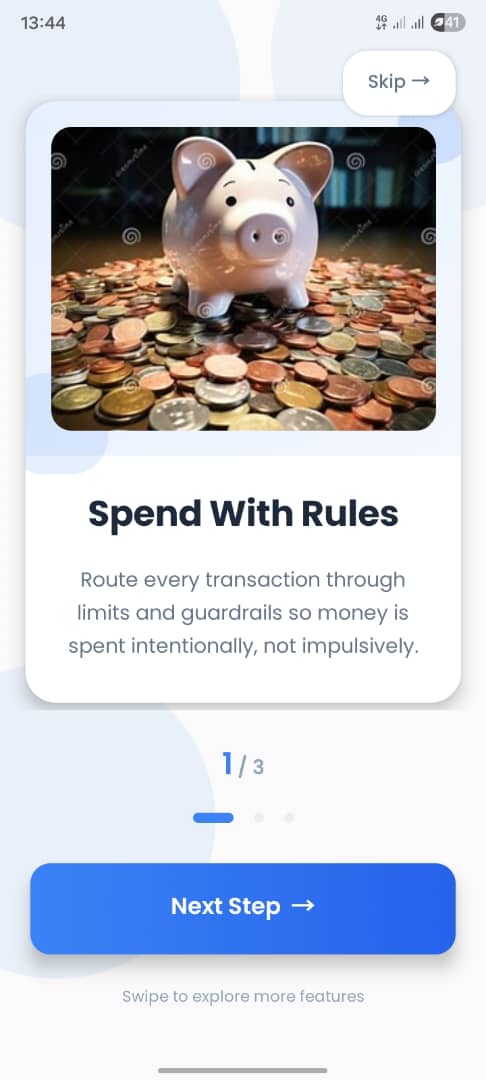
Spendora onboarding screen one
Spendora onboarding screen two
Spendora onboarding screen three
Spendora personal information setup screen
Spendora email verification screen
Spendora login screen

Screens from the live Spendora app flow for this step.
Step 02

Secure account access and configure money controls

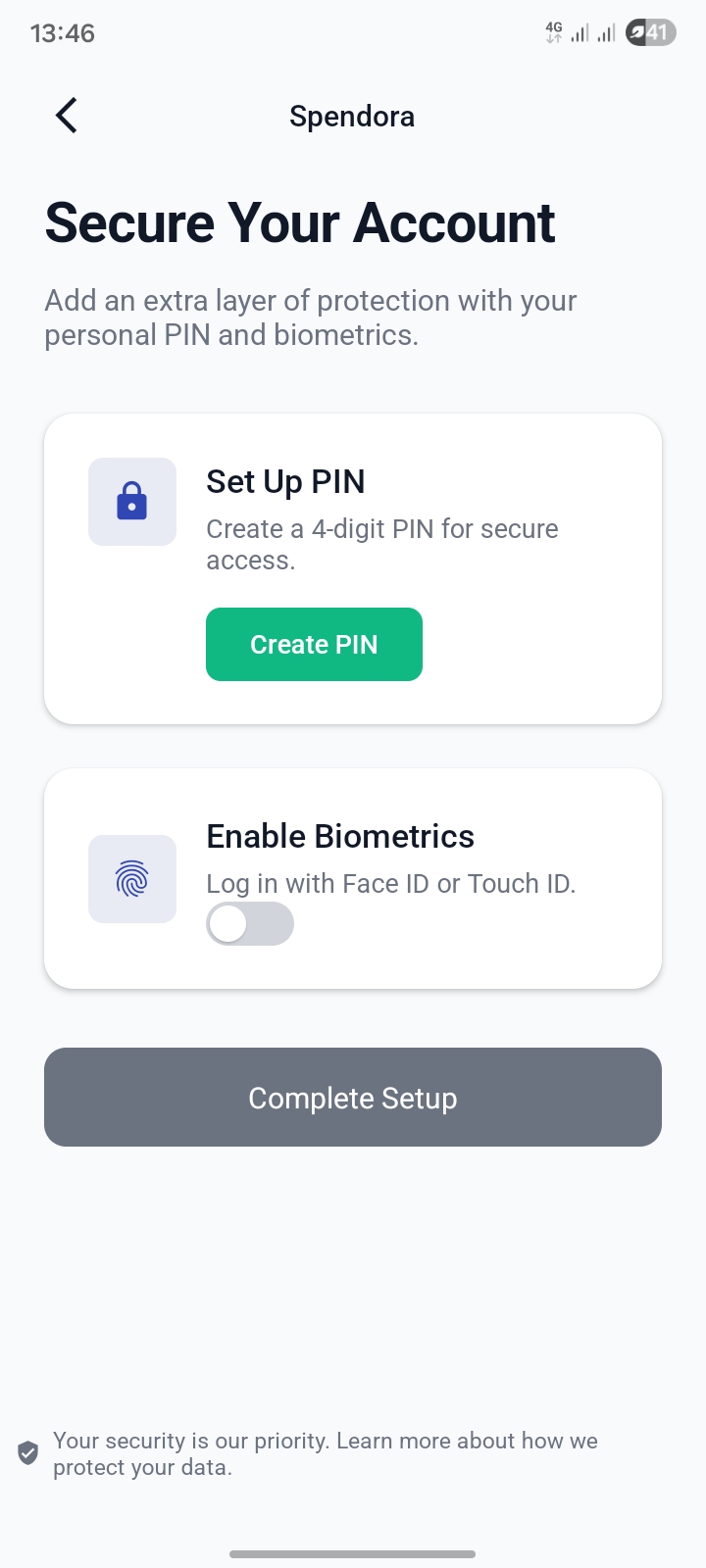
Set transaction PIN first, then configure spending limits and Sacred funds to match your control preferences.

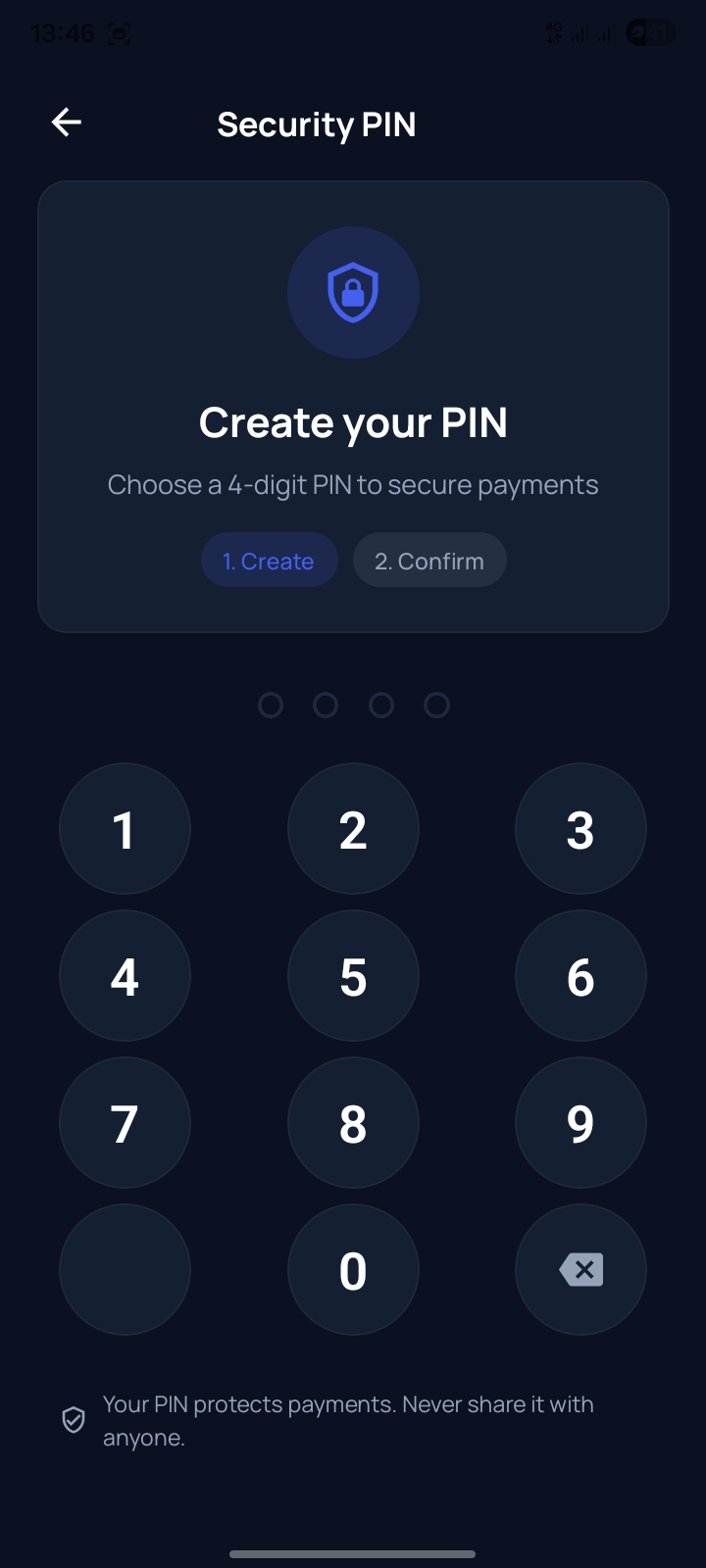
  • Create and confirm your transaction PIN to secure approvals and payments.
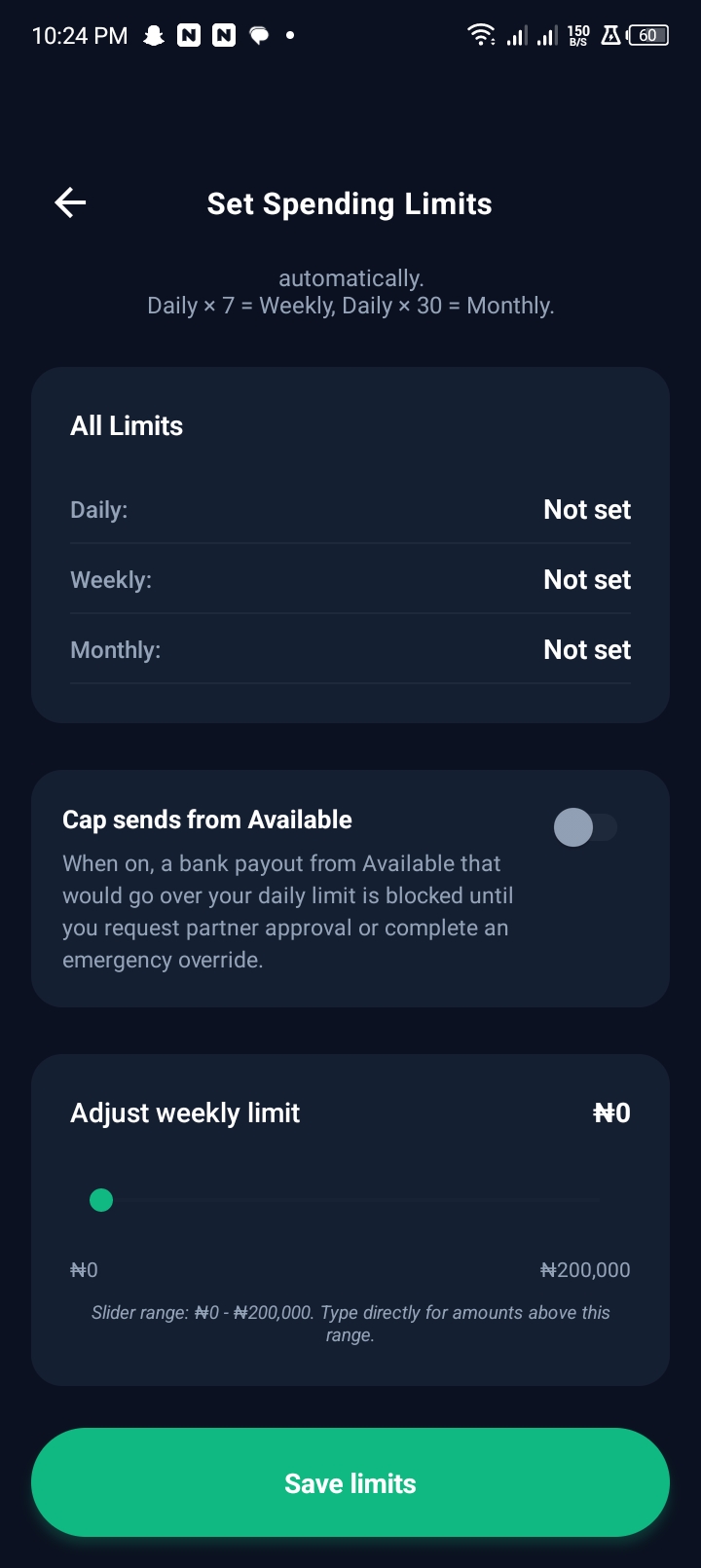
  • Open Set Spending Limits and define a daily/weekly/monthly cap for spending.
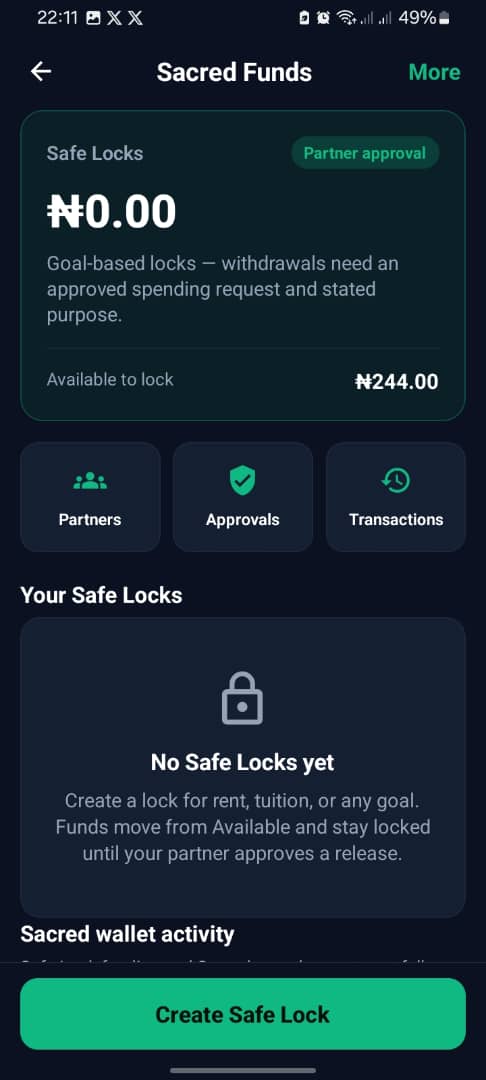
  • Configure Sacred funds to ring-fence money you do not want spent casually.
  • Save your settings and confirm they appear correctly in the app overview.
Spendora create transaction pin screen
Spendora pin setup confirmation screen
Spendora set spending limits screen
Spendora sacred funds setup screen

Screens from the live Spendora app flow for this step.
Step 03

Review dashboard and run your first spend flow

After setup, confirm balances and controls from your dashboard, then test a normal send-money flow.

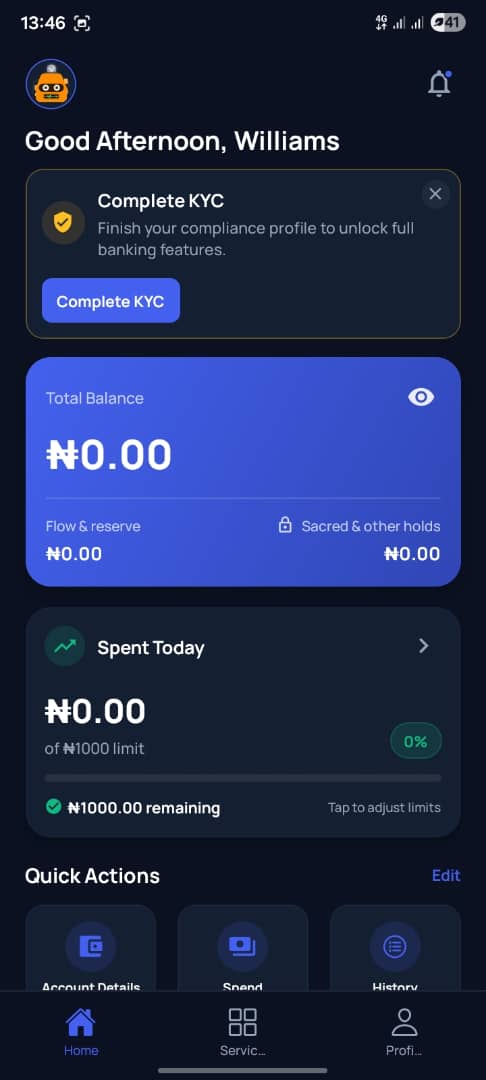
  • Open Dashboard and verify your setup values (limits, sacred balance, and available funds).
  • Open Overview to cross-check account and wallet allocations.
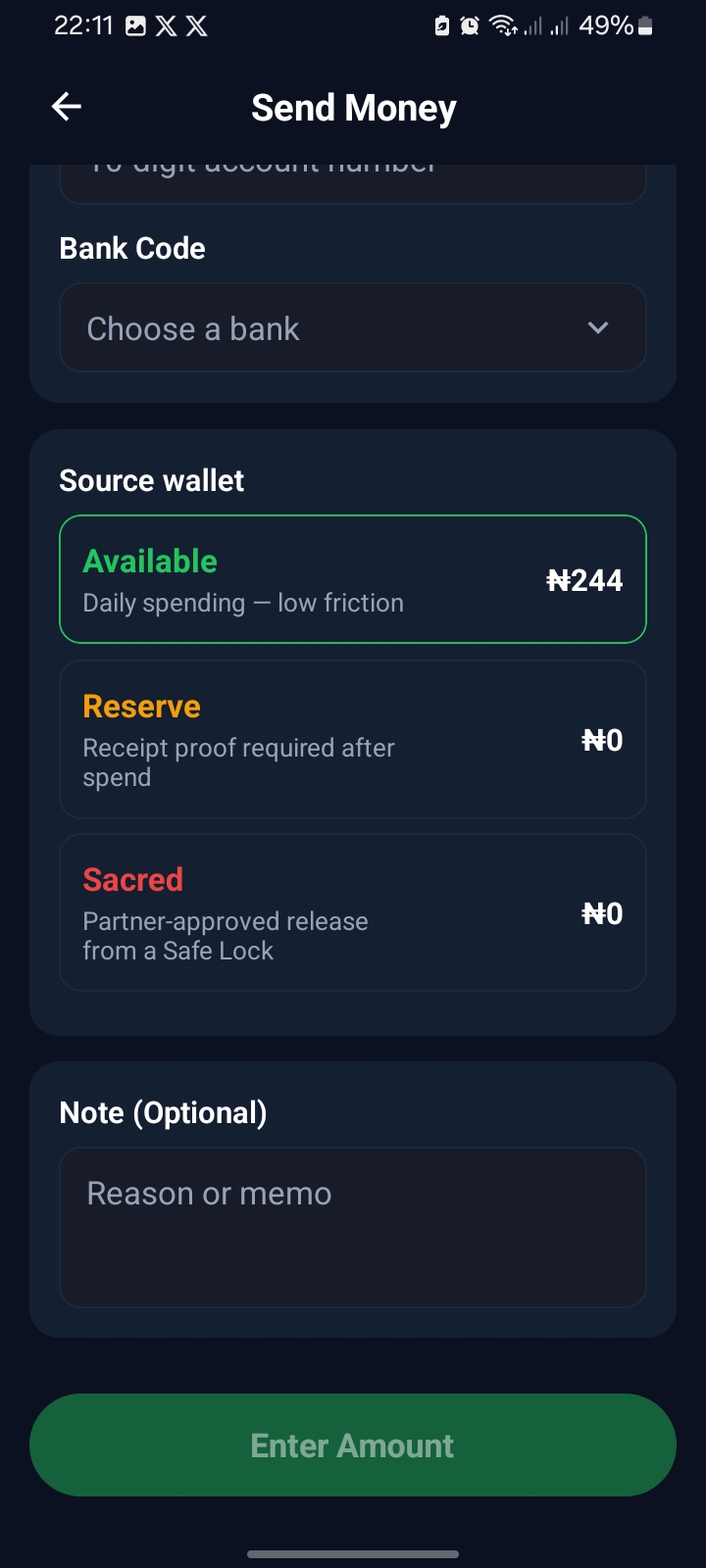
  • Use Send Money for a small test transaction to confirm your setup works.
  • If a flow fails, return to limits/PIN screens and correct setup before retrying.
Spendora dashboard screen
Spendora account overview screen
Spendora send money screen
Spendora in-app flow confirmation screen

Screens from the live Spendora app flow for this step.